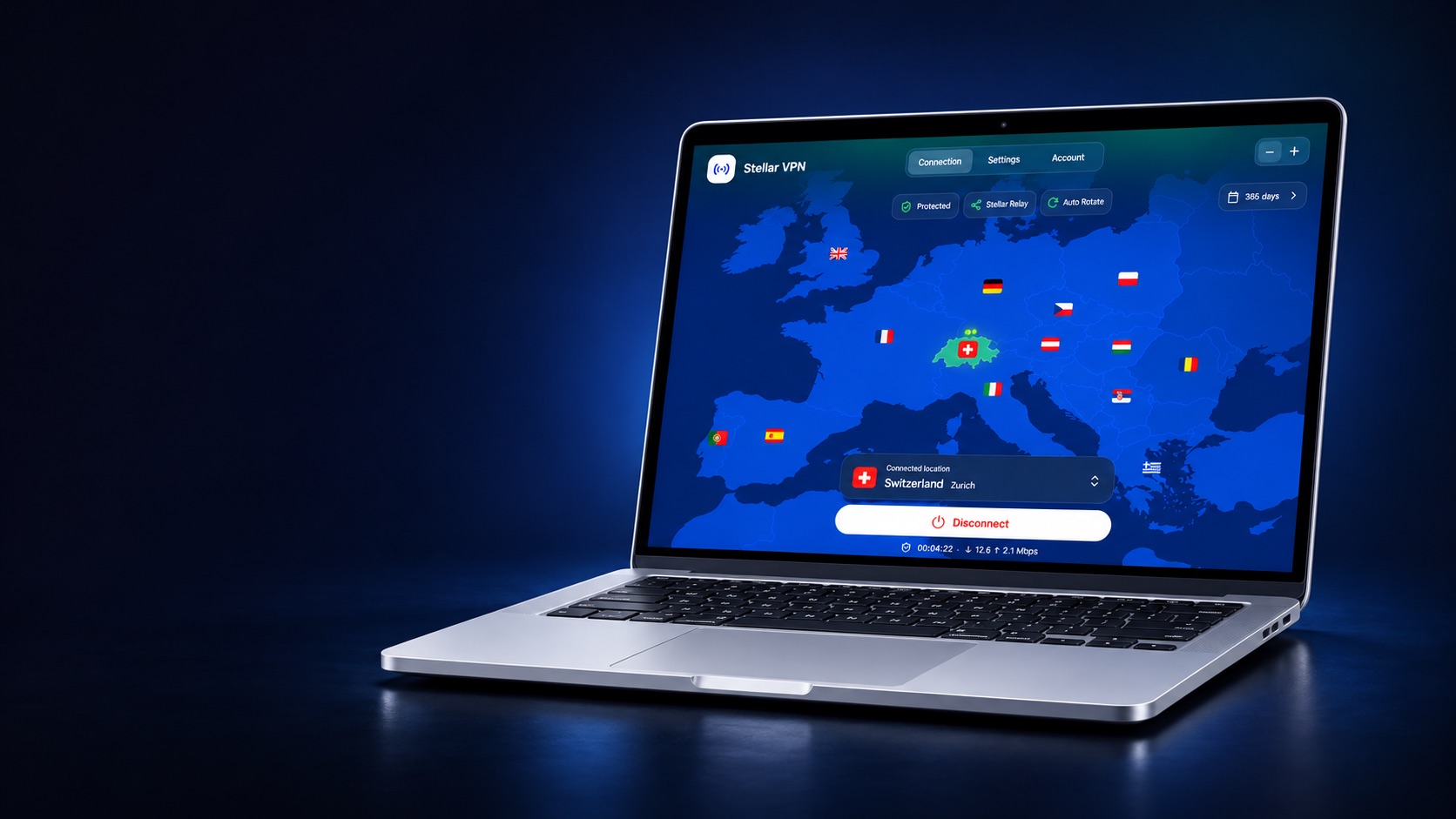
Your VPN should be easy to understand at a glance. With the new Stellar VPN desktop update, we’re introducing a refreshed desktop experience that brings your connection, locations and account into a clearer view.
The update is available for Mac, Windows and Linux. Here’s what you’ll find when you open it.
Your connection. At a glance.
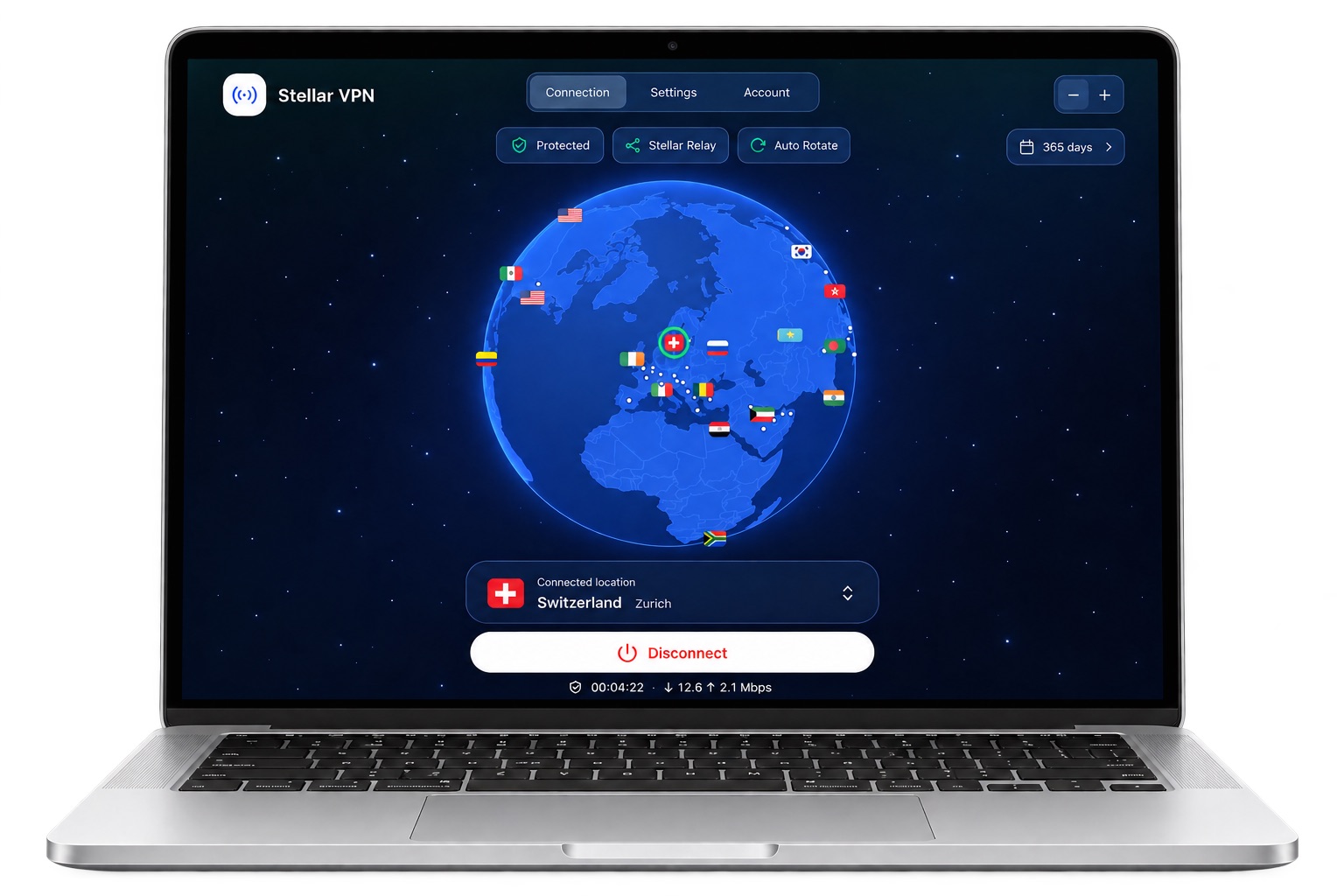
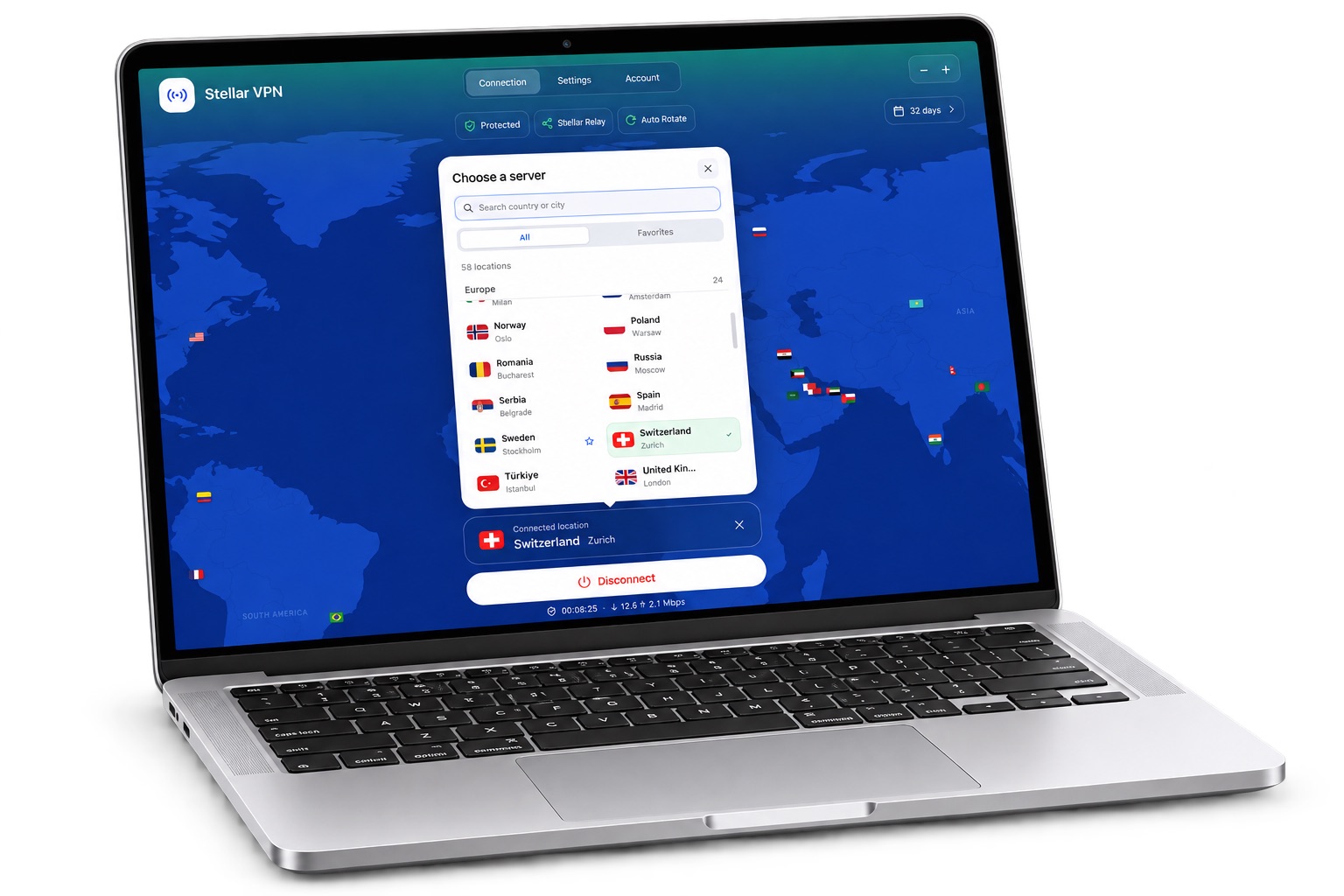
The map is at the heart of the new interface. See your selected location, check your connection status and reach the main connection controls from one place. You can explore the wider map without losing track of where you’re connected.
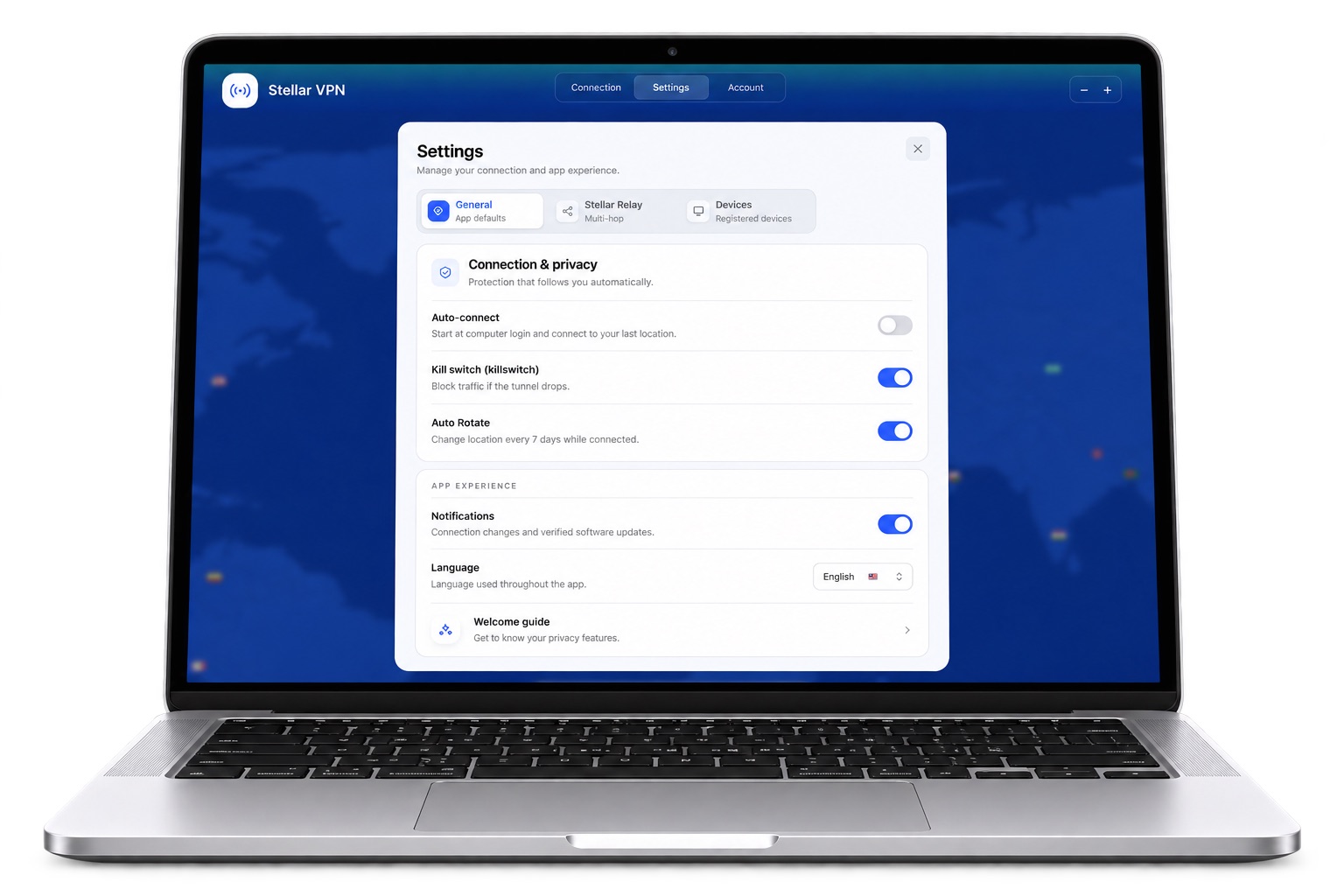
We’ve given the surrounding interface the same attention: clearer account navigation, familiar settings and a layout that keeps the everyday controls close at hand.
Your location, status and connection controls together in the main window.
Sign in with your Stellar ID or use an anonymous account number.
Choose where you connect.
Open the location picker to browse the available servers and choose the location you want to use. Whether you’re connecting through Switzerland or selecting another available location, your choice stays visible in the connection view.
The goal is simple: make choosing a location and checking your connection feel like part of the same experience.
A private start, right in the app.
You can now create an anonymous account number directly in the desktop app, without opening a registration page in your browser. No email address or password is needed to create that number.
Your 16-digit number is your login. Keep it private and save it somewhere safe before continuing. If you already have a Stellar ID, you can keep using that to sign in.
Less time finding your way around.
More clarity about your connection.
Get the desktop update.
The new desktop update is available for Mac, Windows and Linux. Choose your platform on the official download page and follow its installation instructions.
- Choose Mac, Windows or Linux on the download page.
- Download the app for your device and follow the installation prompts.
- Open Stellar VPN, sign in if asked, choose a location and connect.
Already using Stellar VPN? Keep your Stellar ID details or anonymous account number available when updating. If an in-app download cannot complete, get the installer from the official download page.
Ready on your desktop.
Mac, Windows or Linux: the new Stellar VPN is ready for your next connection. Explore the refreshed app and find the location you want to use.